
In this section we will write a very simple JavaScript program. The purpose here is to see where we put JavaScript source code and how we can run it.
-
To begin with, create an HTML file.
Note: an HTML file is a file that has .html as its extension.
The name of the file in our example is hello but you can choose any other name you’d like. Just make sure the extension is .html.
-
Now open the file via your preferred IDE. If you don’t
have an IDE, first of all we recommend that go and download one but if
you weren’t interested in IDEs, still you can use your OS’s Notepad
program. For example in Windows there’s a program exactly named Notepad
and that can be used to server the purpose. -
Copy the code below and paste it into your file.
<html>
<head>
<title>Welcome to JavaScript</title>
</head>
<body>
<script type="text/javascript">
console.log("Hello World!");
alert("Hello World!");
</script>
</body>
</html>-
Now save the file and open it via one of your web browsers. (We
used the Google Chrome).
The moment we run the file, a message will appear like an alert with the message: Hello World!

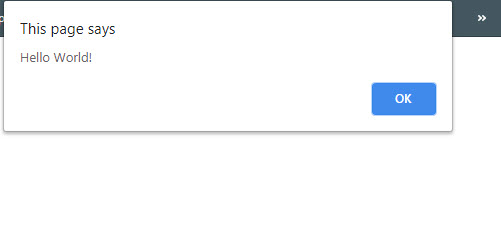
Also another one appeared but we need to do a little bit more work to see it:
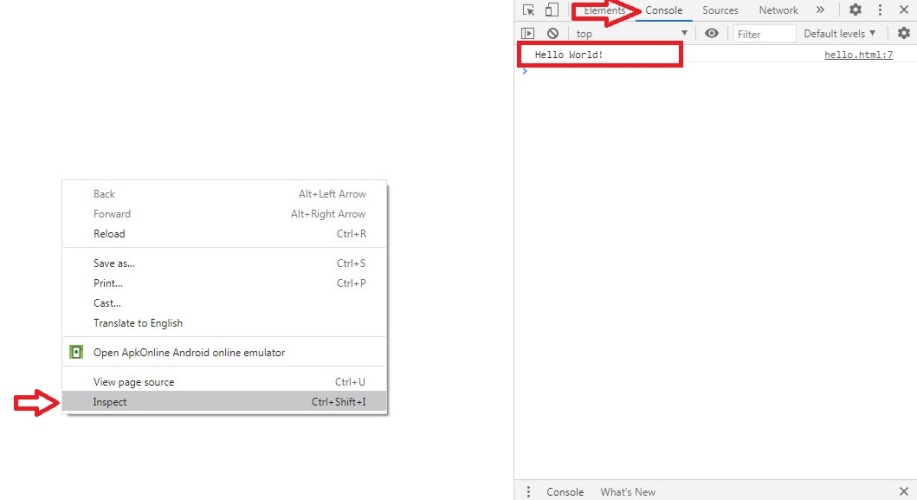
If you ran the example on the Google Chrome, just like the ways we showed in the picture below, go ahead and right click in the middle of the page and select Inspect. Next, in the page that appears usually on the right side of the browser, select the Console tab and bingo, the other message which is again Hello World! is printed there as well.

Congratulation, you’ve just executed your first JavaScript program!
What happened?
-
We use the `<script></script>` tag to include a
JavaScript source code in a webpage. If the source code is short, we can
simply put the code between the opening `<script>` and closing
`</script>` tag and the target browser will execute that code for
us.
But if the source code is lengthy, we can write the source code completely in a different file and include the file via one of the attributes of the <script> element which is named src.
Note: You’ll learn how to do so in the script tag section.
-
The source code you saw between the opening and closing
`<script>` tag, was actually a JavaScript code!
This program has two statement.
-
The `aler()` is a built in function (predefined JavaScript
instruction) that takes a message (`Hello World!` in this case), and the
moment the target page that has this instruction is loaded in the
browser, that message will appear as an alert usually at the top of the
browser. -
The `console.log()` is also another JavaScript predefined
instruction that takes a message and print it as a log to the browser’s
Console.
Note: In the next section we’ll explain what the Console is and why we need it.
As you can see, to write and execute a JavaScript program all we need is simply a Web-Browser and a Text-Editor! And with these two, we’re ready to go.