
In this section, we will learn what the grid align-items property is and how to use it in CSS.
Click here to run the example of grid align-items property.
CSS grid align-items Property Definition and Usage
When we create a grid, we can see that each item is placed in one cell and fills the entire space of that cell. But this is the default behavior and we can change the position of all items within their cells horizontally and vertically.
In order to vertically change the position of grid-items within their cells, we use align-items.
CSS grid align-items Property Syntax
align-items: value;CSS grid align-items Property Value
The values that can be set for this property are:
-
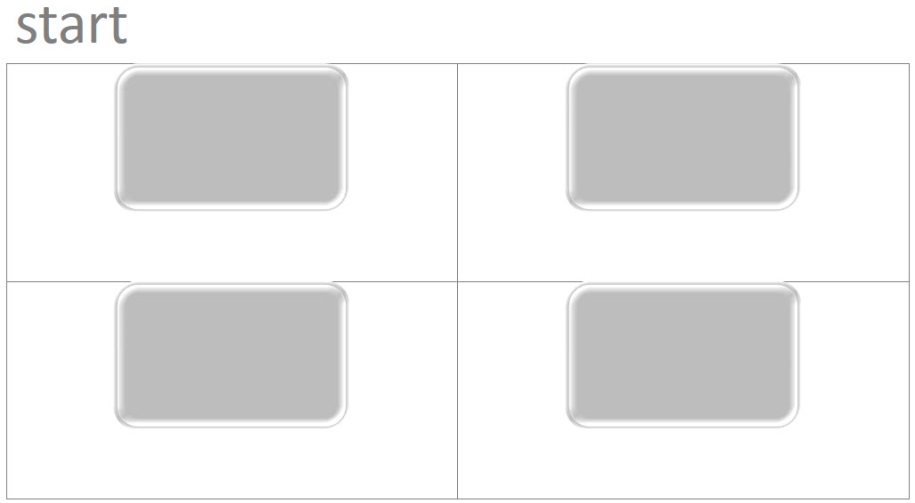
start: using this value, each item will be
positioned at the top edge of its cell.

-
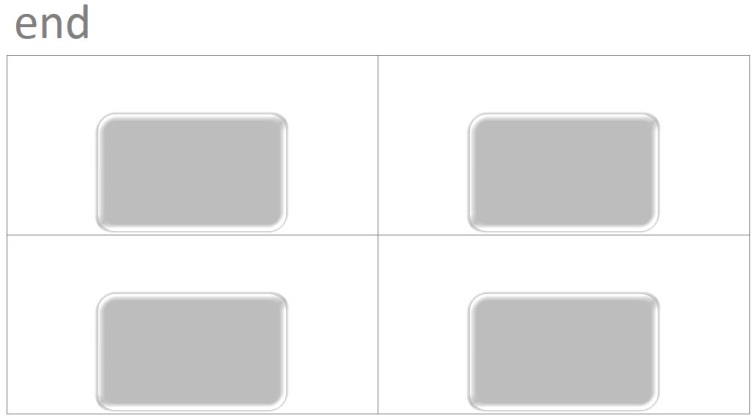
end: using this value, each item will be
positioned at the bottom edge of its cell.

-
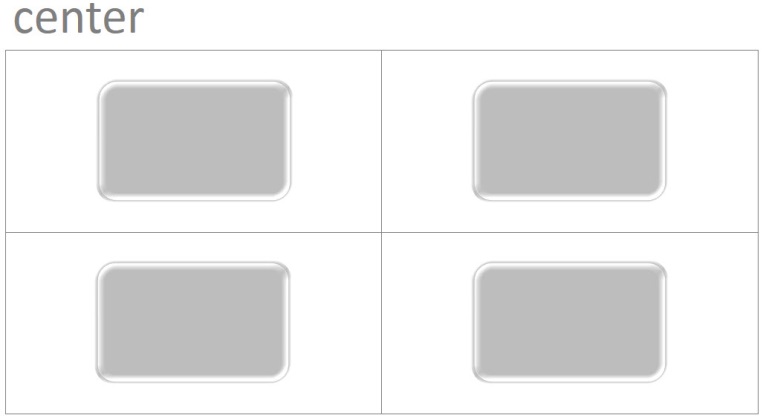
center: using this value, each item will be
positioned at the center of its cell.

-
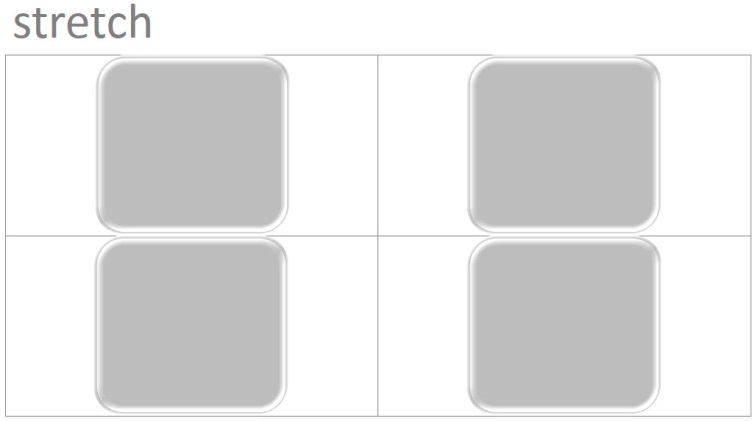
stretch: using this value, each item will
vertically stretch and fill the entire vertical space of its
cell.

Note: there’s another property called align-self by which we can vertically change the positon of an item within its cell. The difference between this property and align-items is that align-self applies to only one item but align-items applies to all items within a grid.
Example: align items center
<!DOCTYPE html>
<html>
<head>
<title>CSS is fun :)</title>
<meta name="viewport" content="width=device-width, initial-scale=1.0">
<style type="text/css">
*, ::after, ::before{
margin:unset;
box-sizing: border-box;
}
.grid{
display: grid;
grid-template-rows: repeat(2 , 20vh);
grid-template-columns: repeat(3, 30vw);
grid-gap: 2px;
align-items: center;
margin:4em;
}
.item{
background-color: whitesmoke;
border:thin solid;
}
</style>
</head>
<body>
<div class = "grid">
<div class = "item item1">Item One</div>
<div class = "item item2">Item Two</div>
<div class = "item item3">Item Three</div>
<div class = "item item4">Item Four</div>
<div class = "item item5">Item Five </div>
</div>
</body>
</html>